
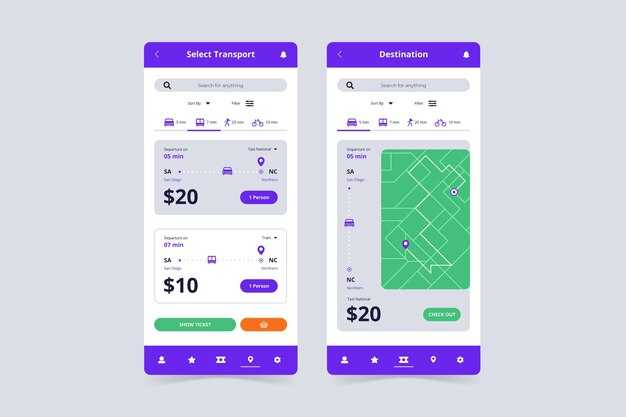
Enable the Figma Localization Plugin to pull localized screenshots directly from your original designs, then create separate variants for each language. Having a single source of truth (источник) for visuals keeps color, typography, and layout consistent while you streamline collaboration with translators and product teams. If you need a quick start, begin with a small set of languages and expand, always tying assets to their language codes.
Set up a clean mapping between text layers and translations so the plugin can localize texts automatically. When you pull in new strings, the plugin updates frames across languages without redoing layouts, ensuring each asset stays conditioned for longer strings and shorter ones. This collaborative workflow reduces back-and-forth and keeps designers, translators, and product owners aligned around a tidy localization process.
Use device-specific canvases and cutting lines to avoid cropping. Create a reusable template with placeholders for texts, then let the plugin generate per-language screenshots in one run. Maintain a separate folder for each language, and name assets with language codes to prevent mixing, enabling fast pull of assets for App Store Connect submissions.
Best practices: maintain color tokens for accessible contrast, validate visuals across languages, and keep items conditioned for dynamic text lengths. Include the источник as a reference to your design system, and document how to localize new strings in a shared guide. This approach serves users and customers by delivering consistent visuals while scaling with markets worldwide.
For numbers, expect a 60–85% reduction in manual edits per release when the workflow is properly configured, and 2–4 hours saved on a five-language cycle. Track performance by counting locales processed per sprint and monitor CTR changes on App Store listings after localization updates. With a localization mindset, you improve speed, quality, and satisfaction for app users and customers alike.
End-to-end workflow: automate screenshots and translation
Automate the entire flow with a single, repeatable pipeline that updates languages, produces screenshots, and pushes assets without manual steps.
Use a central configuration to find all strings, keep color and typography consistent, and deliver immediately to your asset library. The approach works with popular platforms and keeps the context intact for each language. Since translations live in a languages folder, the plugin can pull the right text and apply it to the corresponding frames automatically.
- Define languages and naming scheme
- Create a list of languages: en, es, fr, de, it, ja, zh-CN, ko, pt-BR.
- Establish a universal naming rule like screenname_langCode.png to make assets easy to find.
- Example: hero_en.png, feature_fr_01.png, onboarding_ja.png.
- Prepare translations and context
- Store translations in language-specific JSON files with keys that match UI labels (title, subtitle, button_label).
- Include context notes to avoid wrong word choices; keep placeholders like {brand} and {version} intact.
- Maintain the mapping so developers can find strings where they appear in the UI and verify accuracy.
- Apply translations in Figma via the Localization Plugin
- Use universal components to maintain color and layout; cutting across layers to keep consistency.
- Run the plugin to replace text layers using the corresponding language file, preserving color tokens.
- Preview results to catch layout shifts before export.
- Automated export and storage
- Export per language at required App Store sizes and orientations.
- Save outputs to a versioned folder structure and snapshot the manifest with updated timestamps.
- Deliver assets immediately to the asset library or management system without waiting for manual handoffs.
- Validation and hand-off
- Auto-check for missing translations; if a key is unavailable, fall back to the English text to avoid blank strings.
- Provide a quick preview gallery for developers to verify context and names.
- Since the process tracks changes, teams can review updates and ensure correctness before publishing.
- Update cadence and governance
- Whenever translations update, trigger a re-export automatically and log who updated and when for management visibility.
- Keep the code and config in a repository where marketing, localization teams, and developers collaborate, having clear change history.
This approach keeps the workflow fast and reliable, with a clear path from design to store assets. It emphasizes universal components, immediate feedback, and an efficient management of languages, where updates propagate quickly and correctly across all screenshots.
Set up prerequisites and project structure in Figma
Create a dedicated Figma file for localization and place all assets, frames, and text in a clean, consistent structure. This will support prototyping, keep elements organized, and help automate the translation workflow. The initial setup became the baseline for all localization work.
Prerequisites: a Figma account with plugin access, a pre-translate glossary, and assets uploaded (logos, icons, screenshots). If spanish is targeted, include a Spanish glossary and color notes to guide writers and translators.
Project structure: create pages named Assets, Strings, Screens, Variants, Localization. Within each page, use frames for individual screens and a shared library for color tokens. Place the color tokens in a Color Tokens frame to maintain consistency. It became clear that the ones repeating across screens should link to the same tokens; frames were organized to support localization.
Text and components management: keep all strings in Strings with language keys and written values, then link text layers to their tokens. Use components for reusable UI elements to ensure a uniform look across locales.
Automation workflow: import assets and strings, select the target language in the plugin, apply pre-translate, and upload translated strings back to the file. Since each locale uses its own text blocks, verify that each frame shows the correct copy and that their color stays consistent.
Validation and handoff: maintain a change log, publish a single file version, and run a final check before export. Since translations can drift, re-run the automation that updates strings and visuals.
Integrate MT translation service with the Localization Plugin
Enable MT translation in the Localization Plugin to translate the original strings in seconds with the fastest feedback loop. The process takes seconds to complete, and you can review results without leaving Figma.
Open the MT tab in the Localization Plugin, connect a web-based MT service, paste the API key, select target languages, and confirm how many clicks are needed to finalize the setup for all texts. There you go.
With a full-fledged MT engine, the translations for your designs stay fast and clean, ready to feed your localization workflow and save hours for designers and teams.
Uploading the texts to the tool and letting it produce drafts saves time, but run a quick review to catch errors before shipping to users in other locales.
Create a well-maintained glossary and style guide in the plugin to keep translations consistent; this reduces errors and helps some users find the right tone for each market. A designer can adapt terminology in key designs during review.
Synchronize translations across locales by enabling auto-sync, then compare results side by side; the live preview shows how texts will appear in each language and helps you find gaps.
Arguably the biggest win is speed: you can unlock the fastest route to international coverage while keeping your original designs intact and well aligned with brand guidelines.
After review, export the localized strings back into your Figma files and publish updates; this workflow is well-supported by tools in your stack and the plugins you already use.
Create a reusable screenshot template with locale-aware placeholders
Use a single Figma frame as a reusable screenshot template with locale-aware placeholders to drive consistent App Store visuals across locales. In this system, map each text element to lingohub translations and select the target locale before export; this saves hours by replacing content in one place and providing a view of how each locale will appear for customers.
Design the template with main sections for title, subtitle, buttons, and bullets. Give each text layer a locale-aware placeholder like Title_{locale} and Description_{locale}, and group elements by content type to streamline translate and replace operations. Use this technique to prepare files for each language without duplicating structure.
In Figma, attach texts to a translate workflow: enable the plugin, translate, and choose from lingohub or your internal system. The plugin can swap elements and texts based on the selected locale, keeping the main layout intact while cutting down manual edits.
Prepare a small set of tests to verify fit, line-wrapping, and button visibility across locales. Save the test results in a dedicated files folder and review in the most viewports you support. Keep a base version for reference to maintain consistency across updates.
To speed up creation, set up a batch export workflow: select the locales, run translate for texts, and save screenshots from the template. This process remains fast because changes apply across all elements, not just one language, and it supports customers with diverse needs.
Engineering tip: keep settings minimal within the template–avoid cutting margins too tight; set safe areas and margins so cutting across devices remains predictable. Use options in the plugin to manage fonts, line height, and wrapping, and store these in a shared design system folder.
Iterate on the main layout by iterating with each locale. Reiterating the approach helps teams stay aligned and reduces last-minute translations. After translation, review all files, verify the view, and confirm that the final output matches customer expectations.
Summary: create a reusable screenshot template in figma, link texts to translate, and rely on lingohub for locale data. With a coherent preparation flow, you can view, translate, and export dozens of locale-specific assets from a single source, keeping the creation fast and reproducible for every project.
Batch export and organize screenshots by locale
Start with a naming convention: include the locale code at the end, e.g., ScreenName_en_US. This keeps strings separate and makes characters in filenames predictable. Create a single export session per locale by grouping locale frames in the Localization Plugin and export to locale-specific folders. Example setups: en_US, es_ES, fr_FR. The approach reduces manual clicks and simplifies reviews which keeps your workflow smooth.
Configure export settings once and apply them to all locale frames: PNG format, 2x and 3x scales, sRGB color, and a consistent background. Use the plugin to select all frames for a locale in one action; the tool creates files created per locale and stores them in clearly named folders. This workflow keeps assets organized and ready for upload. If you need a quick check, perform a test export for one locale first to validate colors and strings before running the batch.
The plugin used to batch export per locale reduces manual steps and helps you keep assets consistent across strings and languages. Use tests to confirm that each locale renders correctly and that the look matches the brand. This approach is better for teams that need fast localization cycles and reliable review milestones.
| Step | Action |
|---|---|
| Prepare locale frames | Name frames with locale suffix (e.g., ScreenName_en_US). Keep filenames under 50 characters to avoid truncation; create a separate file set per locale. |
| Select and group | In the Localization Plugin, select frames for each locale and use grouping to assemble per-locale exports. |
| Set export options | Choose PNG, 2x/3x, sRGB color; decide on background visibility; ensure color accuracy aligns with the store requirements. |
| Run batch export | Execute a single export command; files are created in per-locale folders; verify the count matches the locale set. |
| Review and adjust | Open a sample per locale, review strings and look; fix any truncation or misalignment and re-run tests if needed. |
| Upload and organize | Provide locale folders to the upload workflow or automation; keep a single source of truth for screenshots per locale to simplify publishing. |
QA checks for text length, truncation, and UI safety margins
Define per-frame character budgets and enforce them during import. This keeps designs looking consistent across frames and reduces back-and-forth with customers and others, instead of chasing fixes later.
In your web-based workflow, run a quickly executed QA pass after pulling localized strings: the engine counts characters per text block and compares them to each frame’s safe area, flagging overflow before you upload.
Truncation checks detect if a label is cut off at the end of a line or frame; measure the text height against the frame height; if overflow, propose shorter wording or moving text to a separate element, or split across frames.
UI safety margins: require left and right margins of at least 12 px inside the frame and top/bottom padding that keeps UI from touching edges; test with single and multi-line layouts; ensure look remains stable when languages switch to right-to-left.
Example workflow: after import, run three checks per locale: length against budget, truncation, and margins. If a string exceeds the budget, swap for a shorter variant, or place it on a separate frame; then update frames and re-upload.
Localization challenges: syncing across teams, fast iterations, and keeping identical visuals. Separate checks for each locale; when you sync, the plugin should place text blocks into corresponding frames and avoid pulling content from other designs.
RTL languages such as Arabic require testing for alignment changes; ensure characters render correctly and punctuation stays anchored.
Notes: track metrics for each update; use a simple report example to show pass/fail status; these checks help teams move faster and keep customers satisfied.


